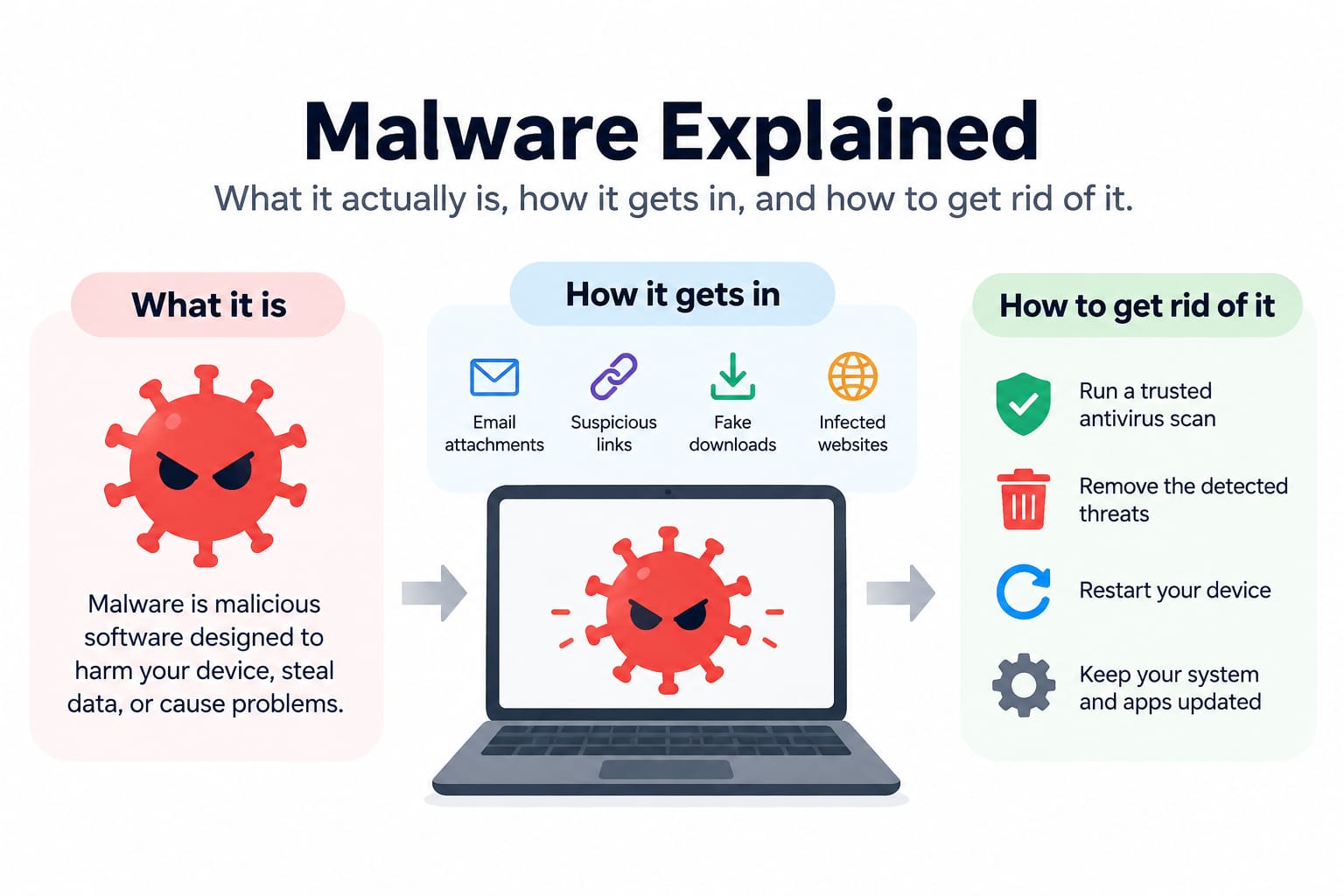
Malware Explained: What It Actually Is, How It Gets In, and How to Get Rid of It
Your laptop's fan has been running like it's mining crypto for the last three days. New tabs keep opening on their own. Your browser's homepage changed to some search engine you've never heard of, and you definitely didn't do that. You run a quick search and the word that keeps coming up is "malware" — but nobody actually explains what that means, just that it's bad and you should be scared.
Here's the thing: malware isn't one thing. It's an umbrella term for a whole family of software built to do something on your device without your permission — and the fix depends entirely on which kind you're dealing with. This guide walks through what malware actually is, how it typically gets onto a device, the warning signs worth paying attention to, and the actual steps to remove it and keep it from coming back.
What Malware Actually Is
"Malware" just means malicious software — any program written to damage, disrupt, spy on, or take control of a device without the owner knowing. That's the whole definition. Everything else — viruses, ransomware, spyware, trojans — is a subcategory describing how that malicious software behaves once it's in.
People often use "virus" as a catch-all the way they use "Kleenex" for tissues, but technically a virus is just one specific type of malware. Understanding the actual categories matters, because the warning signs and the fix are different depending on what you're dealing with.
The Main Types of Malware
| Type | What It Does |
|---|---|
| Virus | Attaches itself to a legitimate file or program and spreads when that file is shared or run |
| Worm | Spreads on its own across a network, no user action needed after the initial infection |
| Trojan | Disguises itself as legitimate software to trick you into installing it yourself |
| Ransomware | Encrypts your files and demands payment to unlock them |
| Spyware | Quietly monitors your activity — keystrokes, browsing, screenshots — and sends it elsewhere |
| Adware | Floods your device with unwanted ads, often bundled with free software |
| Rootkit | Buries itself deep in the operating system to hide its own presence and other malware |
| Keylogger | Records every key you press, built specifically to steal passwords and card numbers |
A single infection can actually combine several of these. A trojan is often just the delivery method — it gets in disguised as something harmless, and then it installs spyware or ransomware once it's inside. That's why "I removed the trojan" doesn't always mean the actual threat is gone; sometimes it already dropped something else before you caught it.
How Malware Actually Gets Onto Your Device
Nobody wakes up and decides to install malware. It gets in through a handful of consistently reused tricks:
Email attachments and links. Still the single most common entry point after all these years, because it still works. An invoice you weren't expecting, a shipping notification for something you didn't order, a document from a coworker's "hacked" email account — open the attachment or click the link, and the download starts quietly in the background.
Cracked or pirated software. "Free" versions of paid software are one of the most reliable malware delivery channels that exists. The crack itself often is the malware, or it's bundled alongside it, because the people distributing it have no reason to keep your device clean.
Malicious ads and drive-by downloads. Some infected ads can trigger a download just from loading the page — no click required — by exploiting a vulnerability in an outdated browser or plugin. This is exactly why keeping your browser updated matters more than people think.
Fake browser extensions. An extension promising to block ads, save you money, or "boost" your browser can quietly have full read access to everything you type and every page you visit. Extensions ask for broad permissions by design, which makes them an easy way to hide something malicious in plain sight.
Infected USB drives. Less common than it used to be, but still real, especially with a USB drive you found, borrowed, or picked up from a conference table.
Bundled installers. You install one free program, and it quietly checks three extra boxes during setup that install additional software you never wanted. This is less "hacking" and more just exploiting the fact that people click "Next" without reading.
Warning Signs Your Device Might Already Be Infected
Some infections are loud and obvious. Others are built specifically to stay quiet. Here's what to watch for:
- Your device is noticeably slower than usual, especially right after startup
- The fan runs constantly, even when you're not doing anything demanding
- New toolbars, extensions, or programs appear that you didn't install
- Your browser's homepage or default search engine changed on its own
- Pop-up ads show up even when you're not browsing
- Programs open, close, or crash on their own
- Your antivirus or firewall got disabled and you didn't do it
- Friends or contacts mention receiving strange messages or emails from you that you didn't send
- Your battery drains much faster than it used to (especially relevant on phones)
- Data usage spikes for no reason you can explain
One or two of these can just mean your device is old or needs a restart. Several at once, especially the ones involving settings changing themselves, is a real signal worth acting on. If that's where you are right now, running a dedicated scan is the fastest way to find out for sure rather than guessing — Malwarebytes' free scanner checks for exactly this kind of infection and takes just a few minutes to run.
How to Remove Malware, Step by Step
If you've confirmed (or strongly suspect) an infection, here's the order that actually works:
1. Disconnect from the internet. Turn off Wi-Fi or unplug the ethernet cable before doing anything else. A lot of malware needs an active connection to send your data out or receive further instructions — cutting that connection limits the damage while you work.
2. Boot into Safe Mode. Safe Mode starts your device with only the essential background programs running, which stops most malware from launching alongside your operating system and makes it much easier to remove. On Windows, you can get there through the Recovery options in Settings; on Mac, hold Shift during startup.
3. Run a dedicated malware scanner. This is the part people get wrong most often — assuming their regular antivirus already caught everything. Built-in tools like Windows Defender are a decent baseline, but they're tuned for known, common threats, and they can miss newer or more targeted infections. A dedicated on-demand scanner like Malwarebytes is built specifically to catch what general antivirus tools tend to miss, and it's designed to run alongside your existing protection rather than replace it — so there's no need to uninstall anything first.
4. Delete temporary files before scanning. Clearing your temp folder first speeds up the scan and sometimes removes malware that's hiding there directly, since temp folders are a common place for malicious files to sit while they wait to execute.
5. Let the scan run completely, then quarantine or remove what it finds. Don't interrupt it partway through, and don't assume a scan that finds nothing after two minutes was thorough — a proper full scan of a modern hard drive takes time.
6. Change your passwords, from a different, clean device if possible. If there's any chance a keylogger or spyware was recording your activity, assume your passwords were seen. Start with email and banking, since those are the accounts that unlock everything else.
7. Update everything. Your operating system, browser, and any software that was out of date. A lot of infections get in through a vulnerability that was already patched months earlier — the fix existed, it just hadn't been installed yet.
8. Restore from backup only after you're confident the device is clean. Restoring files from a backup made before the infection can undo a lot of damage, but only do this after the scan comes back clean — otherwise you risk reintroducing the same infection from an old backup.
Does My Built-In Antivirus Already Cover This?
Honestly, partially. Windows Defender and macOS's built-in protections have genuinely improved over the years and catch a lot of common, well-known threats automatically in the background. Where they tend to fall short is newer, less common, or more targeted malware — the stuff that hasn't been added to mainstream signature databases yet.
That's the actual case for running a second, dedicated tool occasionally rather than relying on one system alone: not because your built-in protection is bad, but because no single tool catches everything, and a second set of detection methods closes gaps the first one has. This is exactly the layered approach that Malwarebytes is built around — it's designed to complement whatever you're already running, not compete with it.
Staying Protected Long-Term
Cleaning up an infection is one thing. Not getting hit again is the actual goal. A few habits make a real difference:
- Keep automatic updates turned on for your OS, browser, and any software with internet access
- Avoid cracked or pirated software entirely — the "savings" almost never outweigh the risk
- Check browser extensions periodically and remove anything you don't actively use or recognize
- Back up your files regularly, ideally to something not permanently connected to your device, so ransomware can't reach the backup too
- Think twice before opening unexpected attachments, even from people you know — their account could be compromised too
- Run real-time protection, not just occasional manual scans, since real-time tools catch threats the moment they try to install rather than after the fact
If you've been burned once, real-time protection is worth the investment — it's a lot cheaper than dealing with another infection, a data breach, or a ransomware demand down the line. Malwarebytes Premium adds that always-on layer on top of the free scanner, so threats get blocked before they ever get a chance to install.
Frequently Asked Questions
Is antivirus the same thing as anti-malware?
Not exactly, though the terms overlap a lot in practice. "Antivirus" traditionally referred to software focused on viruses specifically, while "anti-malware" covers the broader category — spyware, ransomware, adware, and more. Most modern security software, including the built-in options on Windows and Mac, actually covers both these days, so the naming difference matters less than it used to.
Can malware infect a phone, or is this just a computer problem?
Phones can absolutely get infected, most commonly through malicious apps installed outside the official app store, fake versions of popular apps, or malicious links sent via text or messaging apps. iPhones are somewhat more resistant due to Apple's tighter control over what can be installed, but "more resistant" isn't the same as immune.
Do Macs get malware, or is that just a myth?
They do. Macs have historically been targeted less often simply because Windows had a much larger user base, making it a more efficient target — not because macOS is fundamentally immune. That gap has been closing as Mac usage has grown, and Mac-specific malware is a real and growing category.
What exactly is ransomware, and what should I do if it happens to me?
Ransomware encrypts your files and demands payment, usually in cryptocurrency, in exchange for the decryption key. The standard advice from security professionals and law enforcement is not to pay — payment doesn't guarantee you'll actually get your files back, and it funds further attacks. Disconnect the device from any network immediately to stop it from spreading to other connected devices, and if the files matter enough, consult a professional data recovery service before assuming they're unrecoverable.
Do I need a paid malware removal tool, or is free enough?
For an active, one-time cleanup, a free scanner is often enough to find and remove an existing infection. Where paid tools earn their cost is ongoing, real-time protection — catching threats before they install rather than cleaning up after the fact. If you've been infected once, that ongoing protection is usually worth it just to avoid going through the cleanup process again.
How often should I actually run a malware scan?
A full scan once a month is a reasonable baseline for most people, more often if you regularly download files from outside official sources or you've noticed anything unusual. If you're running real-time protection, it's actively checking in the background all the time, so a monthly manual scan becomes more of a second-opinion check than your primary defense.
Does a factory reset remove all malware?
In most cases, yes — a full factory reset wipes the device back to its original state, which removes the vast majority of malware along with everything else on the device. The exception is rootkits and certain firmware-level infections, which are specifically built to survive a reset by embedding themselves below the operating system. These are rare for the average person to encounter, but they're the reason "just factory reset it" isn't a 100% universal fix.
How do I know if a link or attachment is actually safe before I open it?
Hover over a link before clicking to see where it actually leads — if the visible text says one thing but the actual URL underneath is completely different, that's a red flag. For attachments, be especially cautious with anything you weren't expecting, even from a known contact, and double-check unusual requests (like an invoice from a company you don't work with) by contacting the sender directly through a separate channel rather than replying to the email itself.
Final Thoughts
Malware isn't one mysterious thing — it's a handful of specific tricks that keep working because people don't expect them. Most infections trace back to one of a small number of entry points: an attachment, a cracked download, an outdated browser, or a fake extension. Knowing that narrows down both what to watch for and what actually helps.
If you're dealing with a suspected infection right now, don't wait on it — the longer something like spyware or a keylogger sits on your device, the more it can quietly collect. A free scan with Malwarebytes is a fast way to get a real answer instead of guessing based on symptoms alone, and if it turns out you're clean, that's a couple of minutes well spent for the peace of mind.